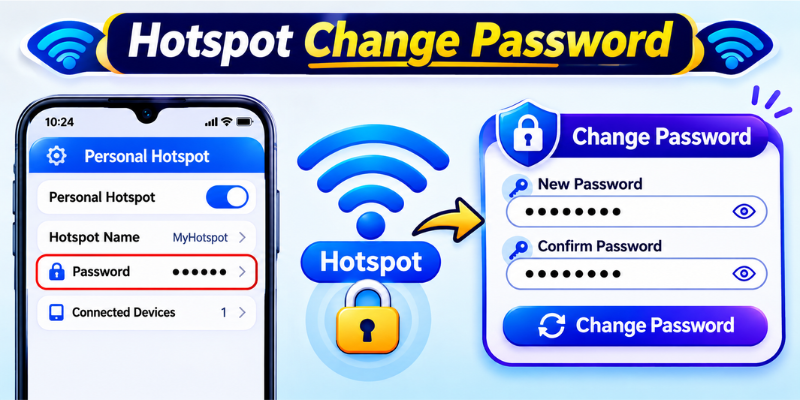
A hotspot change password is one of the easiest ways to keep your mobile internet connection secure. Whether you use an Android phone, an iPhone, or a Windows PC, updating your hotspot password prevents unauthorized users from accessing your network. A strong password also protects your personal data, improves connection reliability, and reduces the chances of someone consuming your mobile data without permission.
In this guide, you’ll learn how to change your hotspot password on different devices, why it’s important, and the best practices for creating a secure wireless hotspot.
Why You Should Change Your Hotspot Password Regularly
Many people set up a mobile hotspot once and never update the password again. While this may seem convenient, it creates unnecessary security risks.
Changing your hotspot password regularly offers several benefits:
- Prevents unauthorized access
- Protects your mobile data allowance
- Improves network security
- Stops unknown devices from reconnecting automatically
- Keeps personal information safer
If you’ve shared your hotspot with friends, coworkers, or family members in the past, updating the password ensures only trusted users can connect in the future.
How to Change Hotspot Password on Android Devices
Android smartphones make changing a hotspot password quick and straightforward. The exact menu may vary depending on the manufacturer, but the process is generally similar.
Open Mobile Hotspot Settings
Start by opening:
Settings → Network & Internet → Hotspot & Tethering
On Samsung devices, you may find it under:
Settings → Connections → Mobile Hotspot and Tethering
Edit the Wi-Fi Hotspot Password
Select Mobile Hotspot.
Locate the Password field.
Enter a new password containing:
- At least 12 characters
- Uppercase letters
- Lowercase letters
- Numbers
- Special symbols
Save your changes.
Anyone previously connected will need the new password before reconnecting.
How to Change Hotspot Password on iPhone
Apple makes hotspot management simple through iOS settings.
Access Personal Hotspot
Open:
Settings → Personal Hotspot
Tap Wi-Fi Password.
Enter a stronger password and tap Done.
The new password becomes active immediately.
When choosing a password, avoid common words like:
- 12345678
- password
- iphone123
- qwerty
Instead, create something unique and difficult to guess.
Change Hotspot Password on Windows PC
If you’re using your Windows computer as a mobile hotspot, changing the password is just as easy.
Open:
Settings → Network & Internet → Mobile Hotspot
Click Edit.
Update:
- Network Name (optional)
- Network Password
Save the settings.
Reconnect your devices using the updated credentials.
Tips for Creating a Strong Mobile Hotspot Password
A weak hotspot password is easy for attackers to crack using automated tools.
Follow these recommendations:
Use Long Passwords
Longer passwords are significantly harder to break.
Aim for 12–16 characters.
Mix Different Character Types
Include:
- Uppercase letters
- Lowercase letters
- Numbers
- Symbols
Example:
Mobi@2026Secure!
Avoid Personal Information
Don’t use:
- Your birthday
- Phone number
- Name
- Address
- Pet’s name
These details are easier to discover than you might think.
Never Reuse Passwords
Use a unique hotspot password rather than reusing your email or banking password.
This limits damage if one password is compromised.
Common Problems After Changing a Hotspot Password
Sometimes devices fail to reconnect after a password update.
Here are the most common solutions.
Forget the Old Network
On the connected device:
- Open Wi-Fi settings
- Forget the hotspot
- Search again
- Enter the new password
Restart Hotspot
Turn the hotspot off.
Wait 10 seconds.
Turn it back on.
Many temporary connection issues disappear after restarting.
Check Password Accuracy
Passwords are case-sensitive.
Double-check:
- Capital letters
- Numbers
- Symbols
- Extra spaces
One incorrect character will prevent the connection.
Best Security Practices for Mobile Hotspots
Changing the password is only part of hotspot security.
You should also:
- Disable the hotspot when not in use.
- Share your password only with trusted users.
- Update your phone regularly.
- Monitor connected devices.
- Remove unknown devices immediately.
- Use WPA2 or WPA3 encryption whenever available.
- Avoid using open hotspots without passwords.
These simple habits greatly improve your wireless security.
When Should You Update Your Hotspot Password?
There isn’t a universal schedule, but it’s smart to change your password:
- Every few months
- After sharing it with multiple people
- When you notice unknown devices connected
- After traveling
- Following any suspected security incident
Frequent updates reduce the chances of unauthorized access.
Frequently Asked Questions
How do I perform a hotspot change password on Android?
Open Settings, go to Hotspot & Tethering, select Mobile Hotspot, edit the password, and save the changes.
Can I change my hotspot password without changing the hotspot name?
Yes. The hotspot name (SSID) and password are separate settings. You can update only the password.
Why can’t my device connect after changing the hotspot password?
Your device may still remember the previous credentials. Forget the network, reconnect, and enter the new password correctly.
What is the ideal hotspot password length?
Security experts recommend at least 12 characters using letters, numbers, and symbols for better protection.
Does changing my hotspot password disconnect connected devices?
Yes. All currently connected devices are disconnected immediately and must reconnect using the updated password.
Conclusion
Performing a hotspot change password is a simple but effective way to improve your wireless security and protect your mobile data. Whether you’re using Android, iPhone, or Windows, updating your hotspot credentials only takes a few minutes. By choosing a strong password and following good security habits, you can enjoy a safer and more reliable internet connection wherever you go.
Stay in touch to get more updates & alerts on techtrickstimes.com! Thank you