
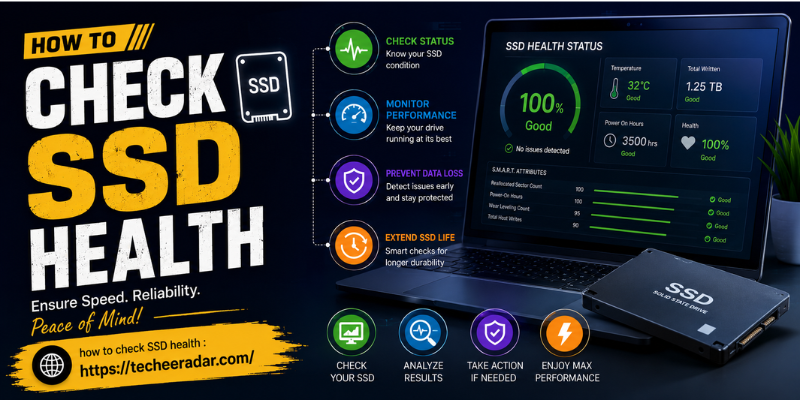
Knowing how to check SSD health is essential if you want your computer to run smoothly and avoid unexpected data loss. Solid State Drives (SSDs) are faster and more reliable than traditional hard drives, but they can still wear out over time. By monitoring your SSD’s condition regularly, you can detect potential issues before they become serious. This guide explains the best methods, tools, and tips to keep your SSD in excellent condition.
Why Learning How to Check SSD Health Is Important
An SSD stores your operating system, applications, and important files. Although SSDs have no moving parts, they have a limited number of write cycles. As the drive ages, its performance and reliability may decline.
Checking SSD health helps you:
- Detect hardware problems early.
- Prevent unexpected data loss.
- Monitor drive lifespan.
- Improve system performance.
- Decide when it’s time to replace the SSD.
Regular health checks are especially important for professionals, gamers, and anyone who stores valuable files on their computer.
How to Check SSD Health Using Windows Built-In Tools
Windows includes several utilities that provide basic information about your SSD without installing additional software.
Use Command Prompt
One of the quickest methods is Command Prompt.
Follow these steps:
- Open Command Prompt as Administrator.
- Type the following command:
wmic diskdrive get status- Press Enter.
If the result displays OK, the drive is functioning normally. However, this command only performs a basic health check and doesn’t provide detailed information.
Check Drive Optimization
Windows also includes the Optimize Drives utility.
- Search for Defragment and Optimize Drives.
- Open the application.
- View the status of your SSD.
- Ensure scheduled optimization is enabled.
Windows automatically performs SSD optimization instead of traditional defragmentation.
Best SSD Health Monitoring Software
If you want detailed information, dedicated SSD monitoring software offers much better insights.
Popular tools include:
- CrystalDiskInfo
- Samsung Magician
- Crucial Storage Executive
- Kingston SSD Manager
- Western Digital Dashboard
These applications display valuable SMART (Self-Monitoring, Analysis, and Reporting Technology) data, including:
- Drive health percentage.
- Temperature.
- Total host writes.
- Remaining lifespan.
- Firmware version.
- Error reports.
Many SSD manufacturers also provide free management software specifically designed for their drives.
Understanding SMART Data When You Check SSD Health
SMART technology continuously monitors your SSD and records important performance metrics.
Some key values include:
Health Percentage
This indicates the remaining lifespan of your SSD. A higher percentage means the drive is still in good condition.
Temperature
Excessive heat can reduce SSD performance and lifespan. Most SSDs operate best between 30°C and 70°C.
Total Bytes Written (TBW)
TBW measures how much data has been written to the SSD throughout its lifetime. Manufacturers usually specify an expected TBW rating.
Reallocated Blocks
A growing number of reallocated blocks may indicate that your SSD is beginning to fail.
Learning how to interpret these values helps you make informed decisions about maintenance and replacement.
Common Signs Your SSD May Be Failing
Even if health monitoring software reports acceptable values, you should watch for warning signs.
Common symptoms include:
- Slow boot times.
- Frequent application crashes.
- Read or write errors.
- Files becoming corrupted.
- Blue Screen of Death (BSOD).
- System freezes.
- Unexpected restarts.
If several of these issues occur together, back up your data immediately and perform a complete SSD health check.
Tips to Extend Your SSD Lifespan
Once you understand how to check SSD health, it’s equally important to follow best practices that maximize drive longevity.
Useful tips include:
Keep Firmware Updated
Manufacturers regularly release firmware updates that improve stability and performance.
Avoid Filling the SSD Completely
Leave at least 10–20% free space to maintain optimal performance.
Enable TRIM
TRIM helps the operating system manage deleted data efficiently, improving SSD performance over time.
Monitor Temperature
Ensure your computer has proper airflow to prevent overheating.
Back Up Important Files
Even healthy SSDs can fail unexpectedly. Regular backups provide essential protection against data loss.
Frequently Asked Questions
How often should I check SSD health?
Checking SSD health once every month is sufficient for most users. If you use your computer heavily for gaming, editing, or business tasks, consider checking every two weeks.
Can Windows check SSD health without software?
Yes. Windows provides basic health information through Command Prompt and built-in storage utilities. However, third-party software offers more detailed diagnostics.
What is a good SSD health percentage?
A health percentage above 90% generally indicates excellent condition. As the percentage decreases over several years, monitor the drive more frequently and plan for eventual replacement.
Which software is best for checking SSD health?
CrystalDiskInfo is one of the most popular free tools. Manufacturer-specific utilities like Samsung Magician and Crucial Storage Executive also provide accurate health reports and firmware updates.
Can an SSD fail without warning?
Although SSDs are generally reliable, they can sometimes fail unexpectedly. Regular monitoring, firmware updates, and backups help reduce the risk of losing important data.
Conclusion
Understanding how to check SSD health is an important part of maintaining a reliable computer. Whether you use Windows’ built-in tools or advanced monitoring software, regular health checks help detect problems early and improve long-term performance. By monitoring SMART data, keeping firmware updated, and following proper maintenance practices, you can extend the lifespan of your SSD and protect your valuable files.
Stay in touch to get more updates &alerts on techeeradar.com! Thank you